- Docs
- Getting started
Your first trade
Place a first order on the KerbTape terminal, step by step.
This walks through one plain order on the desktop terminal. The phone works the same way from the Trade tab.
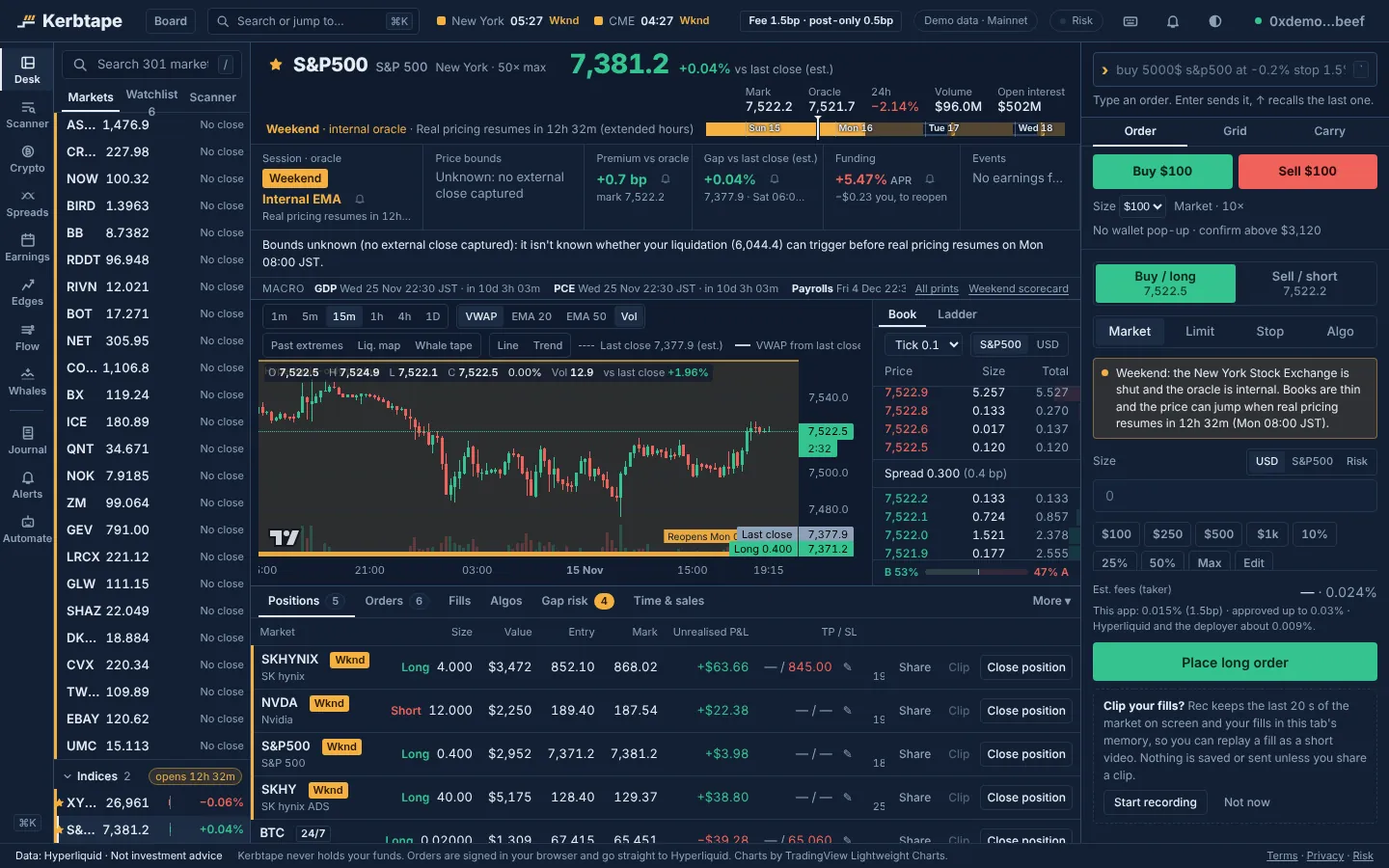
- Pick a market. Click it in the market list, or press / and type a ticker (Market list). On a market whose home exchange is closed, the ticket shows a note with the countdown to the reopen.
- Make sure the market has USDC. On a standard Hyperliquid account a stock market trades from its own balance, which starts at $0. If yours is empty, the ticket shows Move USDC to the stock markets and Switch to a unified account where the place button would be; pick one (one wallet signature) and the ticket comes back (why).
- Pick a side and an order type. Long or short, then Market, Limit, Stop or Algo. For a limit, click a price on the chart or in the book to fill it in, or press Mid.
- Set a size. Type dollars, coin units, or a risk amount, or click a preset ($100, $250, $500, $1k, 10%, 25%, 50%, Max). The size stays in the field after the order.
- Check leverage. The slider starts at your account's leverage on that market. On a closed market with no position it starts lower (see Order ticket).
- Optional: a stop and TP levels. Tick Stop and targets to attach a stop and up to four TP levels (bracket).
- Read the summary. Order value, margin at your leverage, an estimated liquidation figure, and, with a stop, the loss at the stop.
- Press the place button. If the order is unusual (it flips your position, is larger than the confirm cap, or names an ambiguous ticker for the first time) a confirm sheet lists exactly what will be sent, with sizes, notional and fees. Its button arms after a short delay, so the key press that opened it can't also confirm it.
After you place it#
- Fills, positions and open orders show in the Account dock (Positions and TP/SL editing).
- On a phone the app stays on Trade and shows Order sent. Fills show in Account. with a link to the position.
- If Hyperliquid's answer doesn't arrive (a dropped connection, a sleeping tab), the terminal says No answer from Hyperliquid: check open orders before trying again and then looks the order up by its client order id and tells you whether it was placed. It never re-sends on its own. See Troubleshooting.
Next#
- One-click trading: market orders at a preset size in one click.
- Order types and algos: chase, TWAP, scale and the rest.
- The command line: type orders instead of clicking.
Updated . These pages describe what the product does. They are not investment advice and say nothing about where any price goes next.