- Docs
- The terminal
Layout and workspaces
The terminal's desk, workspaces, dock tabs and phone layout.
Starter layout and Pro layout#
On a computer, a new visitor's terminal opens in the starter layout, which says so at the top of the ticket column: Starter layout: chart, ticket, positions. It keeps what a first trade needs: the market header (the price, the gap against the last close, the session and the reopen countdown), the chart, the order ticket, your positions and orders below the chart, and a compact order book beside the chart on screens 1280 pixels wide or more.
The starter layout leaves out the market list, the workspace spine, the command line, the context and macro strips, and the Grid and Carry tickets. Nothing is gone: More tools: markets, workspaces, actions (⌘K) under the switch, or Ctrl/⌘ K anywhere, opens the command palette with every market, workspace and action, and the search box in the top bar finds any market.
The Starter / Pro layout switch at the top of the ticket column shows the full desk described below, and the terminal remembers your choice in this browser. After your first fill the terminal asks once, in place (not a pop-up): First trade done. Switch to the Pro layout? with Switch to Pro and Keep starter. A browser that already used the terminal before the starter layout existed opens in the Pro layout. Phones keep their own one-column layout. Nothing about orders, checks or fees differs between the two.
The desk#
The full desk (the Pro layout) has four areas that all follow the selected market.
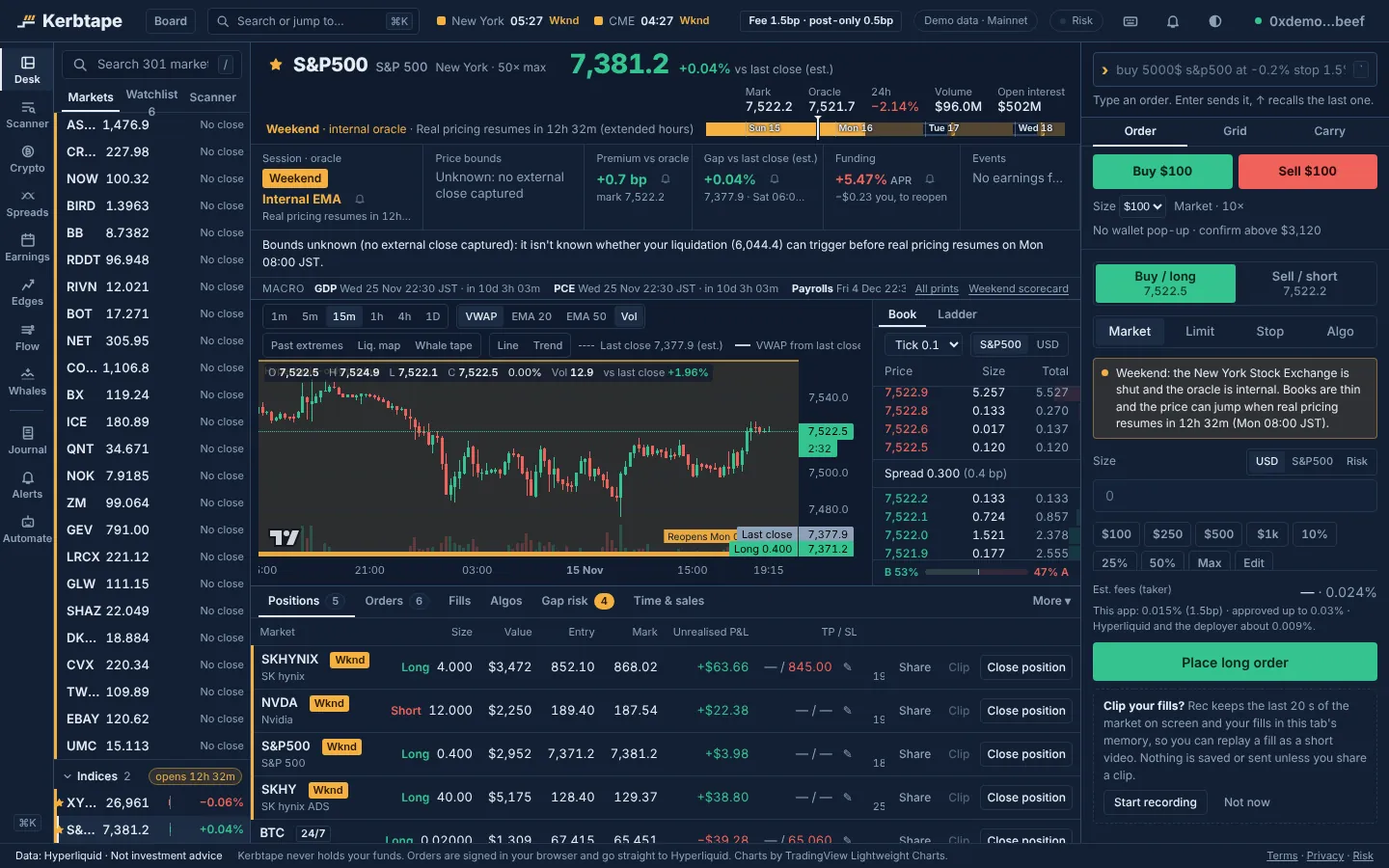
- Left: the market list. Search, watchlist and every market by group.
- Middle: the chart, with the order book beside it on wide screens. Above the chart, the market header shows the price, the gap or 24h change, the session and the countdown to the reopen.
- Below the chart: the account dock. Tabs for Positions, Orders, Fills, Algos, Gap risk, Time & sales, Book, Ladder, Spreads, Journal, Accounts, Execution, IBKR. Drag the handle above it to make it taller or shorter.
- Right: the command bar and the order ticket, with the one-click bar above the ticket once trading is set up.
The top bar holds the mark, a small Board link back to the board, the account menu, the fee chip, the theme toggle and the Connect button.
Workspaces#
The spine on the far left switches between workspaces. Each has a key: Alt + a digit in spine order, or G then a letter.
| Workspace | Keys | What it shows |
|---|---|---|
| Desk | Alt+1 · G D | Chart, book, ticket and account for one market. |
| Scanner | Alt+2 · G S | Every market in one sortable table, with presets (gappers, premium, carry, movers, volume, spread z, earnings). |
| Crypto | Alt+3 · G C | Hyperliquid's own crypto perps, with funding, open interest, movers, volume and new-listing presets. |
| Spreads | Alt+4 · G P | Relative-value spreads between two markets, and your own custom spreads. |
| Earnings | Alt+5 · G E | The earnings calendar for Hyperliquid's stock perps. |
| Edges | Alt+6 · G X | Historical statistics per market (for example funding percentiles). Historical only. |
| Flow | Alt+7 · G F | Liquidations, the liquidation map and large prints from the public trade stream. |
| Whales | Alt+8 · G W | Large position changes by public addresses, with Mirror / Opposite. |
| Journal | Alt+9 · G J | Statistics of your own trades. |
| Alerts | Alt+0 · G A | The alerts you set, and the alert form. |
| Automation | G R | The opt-in server runner: running orders, TradingView webhooks, the audit log and its kill switch. |
Ctrl/⌘ K opens the command palette: every market, workspace and action in one list. The palette only navigates or opens a sheet; it never sends an order.
On a phone#
Under 900 pixels wide the terminal is one column with tabs at the bottom: Chart, Trade, Context, Account and Markets.
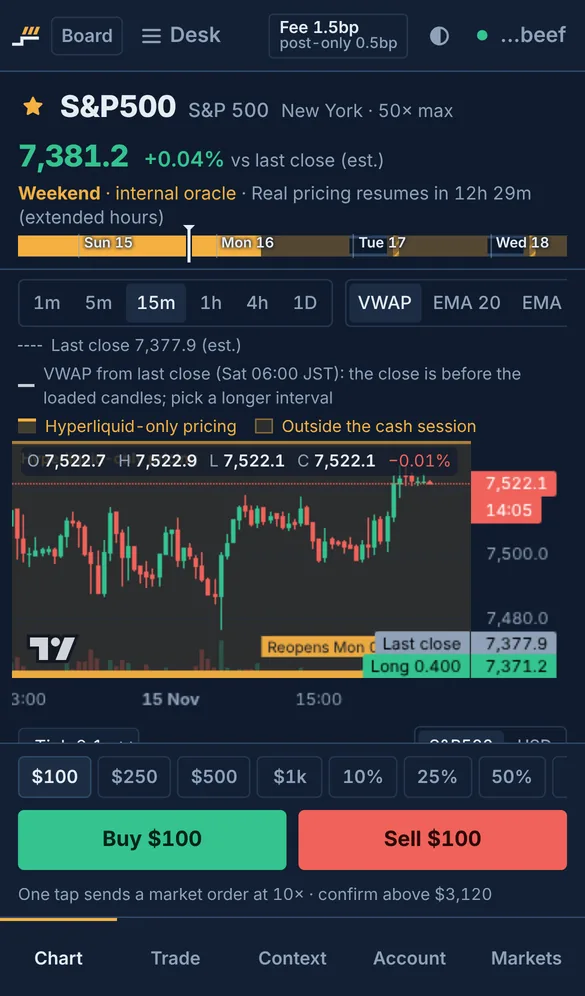
- Chart shows the price, the chart, the quick-trade bar and a short book.
- Trade holds the ticket, with the command line behind a toggle.
- Context shows the session, the gap and the market's details.
- A pre-IPO market has no Trade tab and no quick-trade bar.
Sub-accounts#
Accounts in the dock lists your wallet and its Hyperliquid sub-accounts, each with equity, exposure, leverage, margin used, unrealised P&L and orders. Trade as switches the whole desk to one of them: the streams, the ticket, the command line and hotkeys then act on that account, and the top bar says so. A switch is refused while an algo that manages orders is running.
Other dock tabs#
- Gap risk shows what your positions would be worth if a closed market reopened at the cash close, at the last real price, or with the gap extended by the same amount again (see Liquidations at the reopen).
- Execution lists your last 50 orders with the time from your input to signing and sending, and from sending to Hyperliquid's answer.
- IBKR connects to your own Interactive Brokers gateway to compare prices and plan hedges. It runs only against a gateway you run yourself.
Updated . These pages describe what the product does. They are not investment advice and say nothing about where any price goes next.