- Docs
- Getting started
On a phone
Open the terminal in Safari or Chrome first, then in your wallet app; what to do from X or Telegram links.
On this page
A phone browser has no wallet built in, so the terminal needs one more step on a phone than on a computer.
1. Open the link in Safari or Chrome#
Links tapped inside X, Telegram, Instagram, Facebook, LINE, TikTok, LinkedIn, Snapchat or WeChat open in that app's own built-in browser. Wallets can't connect there, so the terminal's Connect sheet says so first: You're in X's built-in browser. Wallets can't connect here. (with the app's name).
- iPhone: press Copy link, or tap
···(or the share icon) in the app and choose Open in Safari. - Android: press Open in Chrome, or tap
⋮in the app and choose Open in browser.
Your link keeps its market, prefilled order and invite code when you do this. The sheet's On a phone: help link opens this page.
2. Connect from the browser#
Press Connect. With no wallet in the browser, the sheet offers two ways:
- Open in your wallet app. Open links for MetaMask, Coinbase Wallet, Trust Wallet, OKX Wallet and Phantom reopen this same page inside the wallet app's browser, where it connects directly. For other wallets press Copy link and paste it into the wallet app's browser.
- WalletConnect, where it's available: approve the pairing in your wallet app, then switch back to the browser tab.
If the sheet says phone wallets can't connect right now, use the Open links. More in Troubleshooting.
3. Using the terminal on a phone#
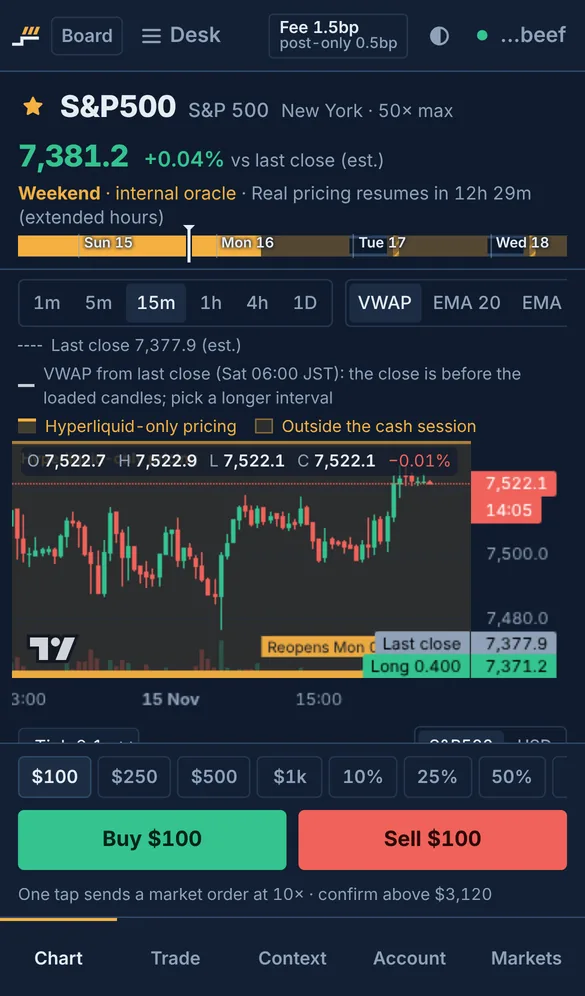
- Tabs at the bottom: Chart, Trade, Context, Account and Markets (Layout and workspaces).
- The quick-trade bar under the chart sends a market order at a preset size in one tap once setup is done (One-click trading).
- Notifications on iPhone need the terminal added to the Home Screen first (Push notifications).
Updated . These pages describe what the product does. They are not investment advice and say nothing about where any price goes next.